


Goods receipt
Delivery bills can be created manually or transferred via interface. Depending on the configuration, the delivery bill is preceded by a purchase order. This document contains the notified delivery for a client, which is to arrive at the warehouse at a later time (see Purchase Orders).
As soon as the notified delivery has arrived, a goods receipt is generated on the basis of the delivery bill. In principle, it is possible that the incoming delivery deviates from the notification in terms of article scope and/or quantity. Over- and underdeliveries are therefore possible. Deviations from the advice note can be corrected by adding, deleting or editing the goods receipt positions.
Delivery bills can be transferred to the goods in receipt:
- Automatic collection:
- Coglas forms the storage units based on the master data stored for the article.
- Manual goods in collection:
- Coglas proposes the warehouse unit constellation formed below, but it can be adjusted.
- Automatic collection (Pos):
- Like Automatic collection, but only on the selected positions.
- Manual goods in collection (Pos):
- Same as Manual collection, but only on the selected positions.
- Create goods receipt slip:

In the Positions tab, the order positions are displayed. In Attachments, the files stored for the delivery bill are displayed. Under linked lists, all orders and goods receipts resulting from this delivery bill are displayed:

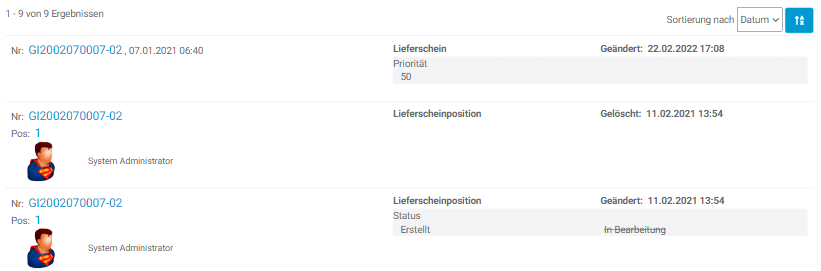
The change history shows all changes to this delivery note:
| Button | Function |
|---|---|
| Add delivery note | To create a delivery note manually, this function is executed. An input mask is displayed in which the fields delivery note number, truck or DContainer code, reference no., reference no. 2 and the target strategy are entered.
By “Add delivery note” a new delivery note is created, without any delivery positions, these must be added manually. |
| Add new position | Adds a new delivery note position, see also below. |
| Automatic collection | Based on the position information of a article, the quantity, the loading equipment and the quantity per storage unit, the number of storage units to be formed with the respective stock quantity is calculated automatically. If the desired loading equipment is not specified, the “EURO” type is automatically used. An NVE/SSCC number is automatically assigned. |
| Automatic collection | Based on the position information of a article, the quantity, the loading equipment and the quantity per storage unit, a possible constellation of storage units to be formed is suggested, which, however, can be changed by the user as desired. This applies both to the number of storage units, as well as the distribution on them in terms of articles and quantity, see also below. |
| Create goods receipt slip | Based on the delivery note positions, the goods receipt bill can be built piece by piece. This allows exact control and allocation of the articles to the load carriers. See also below |
 |
The delivery note including positions is output in a printable report. |
| Aut. Collection (Pos) | As above under automatic collection, but that this ONLY takes place on the selected delivery note positions. |
| Man. Collection (Pos) | As above under manual collection, but that this ONLY takes place on the selected delivery note positions. |
  |
Checkbox to select/deselect an order position. |
 |
Calling the delivery note position for editing, works only for positions in status not equal to Done. |

|
Selects or deselects all positions on the current page. |
 |
The delivery note position is deleted. |
| Delete selected | All selected positions will be deleted. |


If a new delivery note position is added, then at least the fields article and number have to be filled in addition all further data fields. The loading equipment as well as the quantity per storage unit are determined by the autom. The load carrier units are formed at the same time. With “Add delivery note position” a new position is added to the delivery note.
If the respective position is edited, the update of the changed data field is performed via “Update position”.

Manual collection is used in the delivery bill. The user has the possibility to collect the position of the order into different loading units. In addition, the user can take photos and use existing NVE/SSCC of the loading units for goods in. In addition, palettes with multiple quanta can be created.
| Action | Explanation |
|---|---|
 |
After the delivery receipt is created, the goods can be collected. The pallets can be collected as required via manual collection. |
 |
You can reduce the number of pieces on the pallets and pack them on other or new loading units. |
 |
A barcode can be generated via “Capture”. |
 |
A photo of the loading unit can also be stored. |
 |
Via the scanner, the NVE/SSCC of the pallet can be further used. New barcodes can also be generated. |
 |
When the quantities are divided, more loading units are created. Depending on the position, a possible letter is generated for it. |
 |
It is also necessary to determine the LHM for each position. |
 |
After the goods have been distributed to the loading units, the positions can now be transferred to the goods receipt. |
After the delivery receipt has been created, you can start the manual collection.
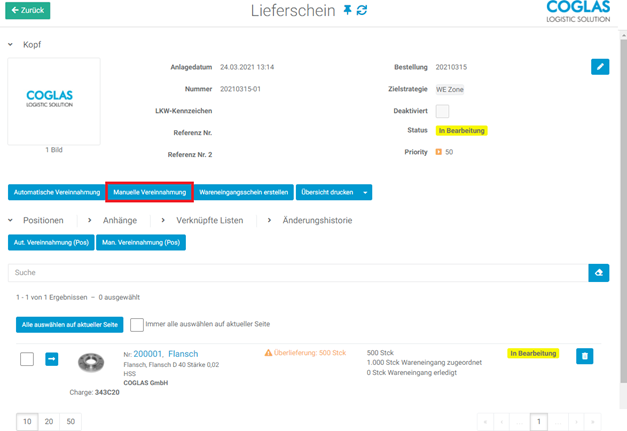
In the collection, the pallets are annexed to the packaging units in the article master. It is now possible to create individual defaults:
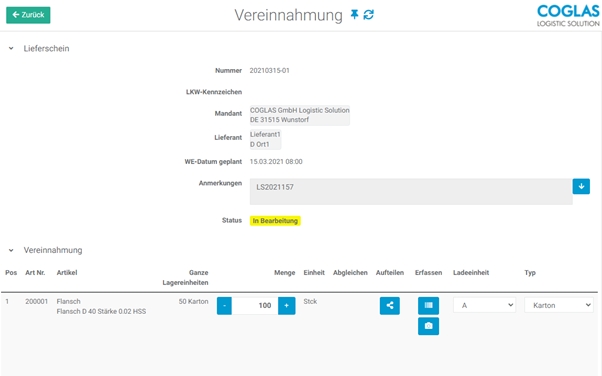
The goods can be divided. Photos of the loading unit can be stored. In addition, existing NVE/SSCCs can be scanned and used for further progress. Several loading units can be created and different LHM types can be stored.
The goods in receipt bill is generated in the delivery bill via automatic or manual collection. It is now possible to create a blank WE bill, in which the individual positions can be added one by one. This gives the user more flexibility and allows him to create his individual goods in bill, which be processed position by position.
Functionality
| Action | Explanation |
|---|---|
 |
After the delivery bill is created, you can create a goods in bill using this button. |
 |
Once the blank delivery bill has been created, the individual positions can now be added to the delivery bill.
Note: Only the positions in the delivery bill are displayed here. |
 |
The selection can be used to edit a specific position. |
 |
To be able to add a goods receipt position, the mandatory fields loading equipment, Barcode, Quantity must be filled in. |
 |
If a certain quantity is already assigned, the corresponding data will be updated:
|
 |
If another position is added, you can add another article to the LHM. Thus, mixed pallets can be generated. |
 |
Once all positions have been added to the good in bill, the goods receipt can be posted. |
| Target strategy | Depending on the target strategy, the status is updated in the positions:
|
Establishment
The blank goods receipt bill can be created in the delivery bill. To do this, we can click on “Create goods receipt slip”.
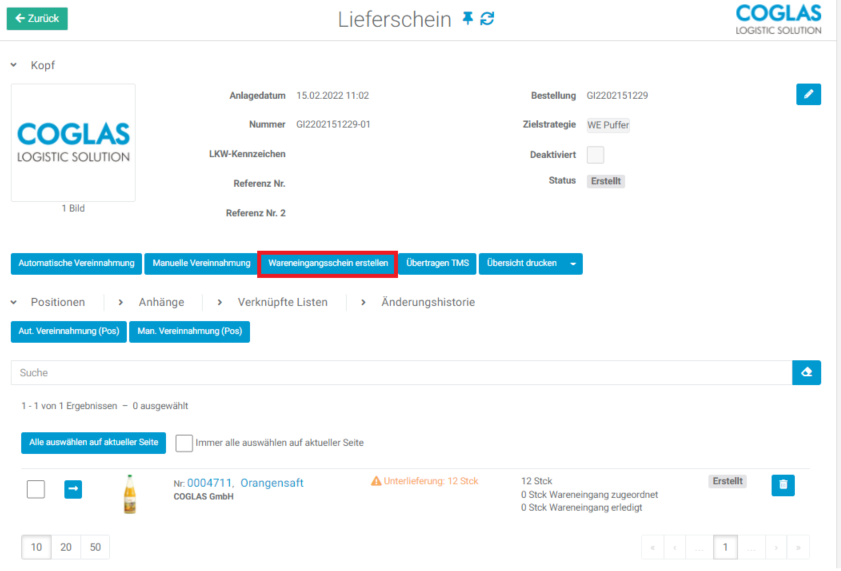
After that, the blank delivery bill is created and you can add the individual positions in the delivery bill:
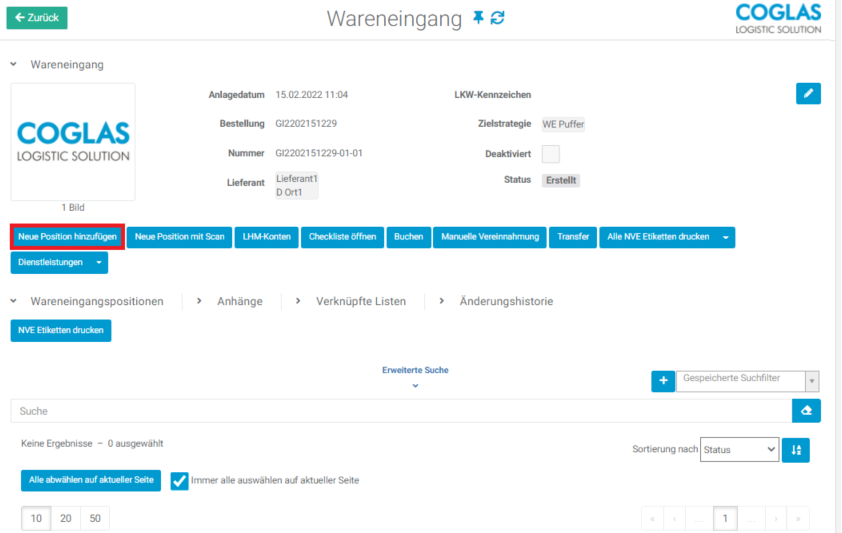
With the selection, the individual positions can be edited:
After that you have the possibility to define the storage unit and to enter further information like batch, SBK, SBK 2, quantity etc.
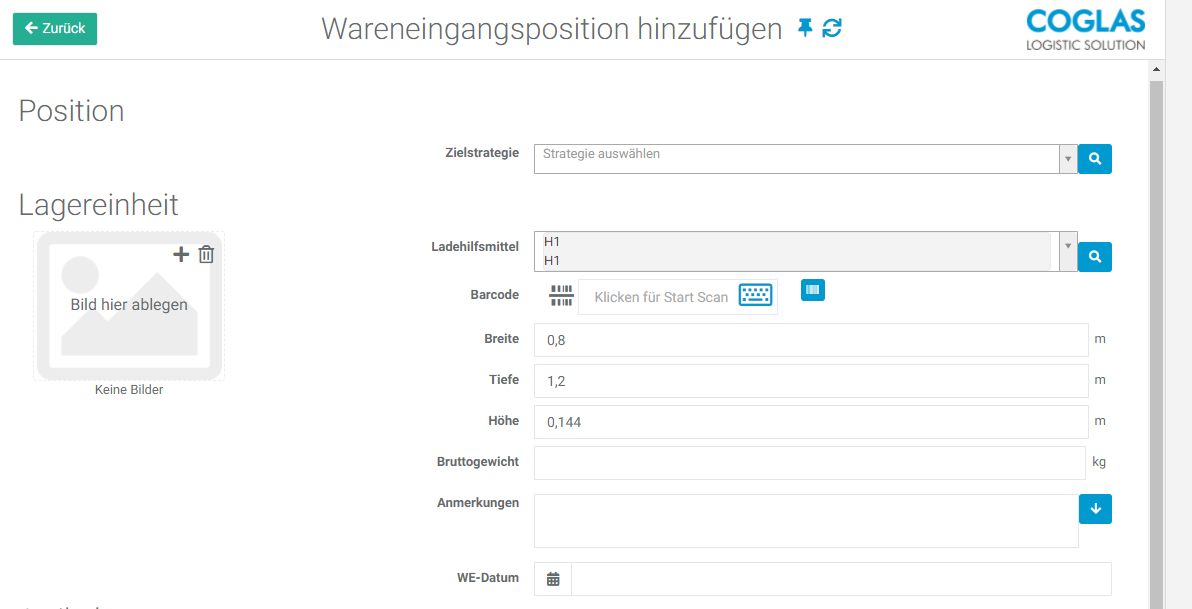
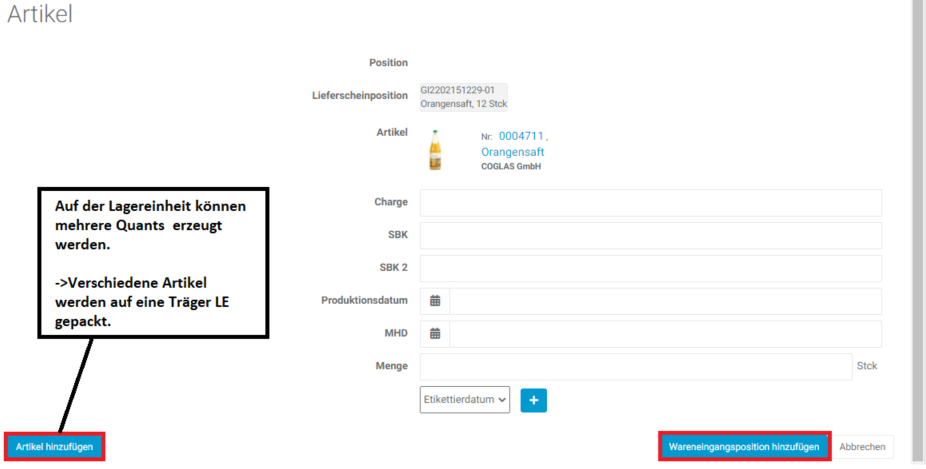
If the positions are completely transferred to the goods in bill, the goods receipt can be posted.
If this functionality is selected, it is possible to combine articles from the delivery note into loading units, completely detached from the specifications.
| Buttons | Explanation |
|---|---|
| Add new position | You get an overview of the articles assigned to the LS and select an article position:
After that, you can enter the data for strategy, loading equipment, barcode, article stock qualifications and quantity. If mixed pallets are formed in this step, you can add more articles to the load unit via Articles that are no longer required are removed from the loading unit via With “Add goods receipt position” this position is taken over. |
| New position with scan | ./- |
| Equipment accounts | If loading equipment accounts are managed for suppliers/clients, you can manage the pallet exchange or similar for the goods receipt here, see also LHM accounts. |
| Manual goods in collection | The article positions stored in the delivery note can also be collected manually here. |
| Booking | The loading units are booked according to the stored strategies and transfer orders are generated. See also Strategies. |
 |
Prints all NVE labels. |
 |
The DL stored under System – Services are displayed here and can be assigned to the delivery bill. |

 .
. .
.

NVE/SSCC number can be defined per client, see System – Business parameters – Client.
Packaging units and quantity for the article can be stored under System – Article – Packaging units.
Delivery notes can also be read in the import interface as an Excel list or JSON file, but can also be set directly via WepAPI.
The following warnings may appear within the processes:
| Notes | Explanation |
|---|---|
 |
Not all mandatory fields have been entered, see also red marked fields. |
 |
It is not possible to delete a delivery note position that is already being processed. |
 |
Only order positions in Created status can be duplicated. |
 |
Deleting an order position cannot be done in the ‘Completed’ or ‘Transferred to ERP’ status. |
 |
Deleting an order position cannot be done in the In process status. |
 |
At least one loading unit was not selected during manual collection. |
 |
The Quantity field in the opened mask is not filled. |
 |
The authorization is missing for the functionality that should be executed. Please contact the key user. |