


Administration
Content
The COGLAS KPI (Key Performance Indicators) can be used to show the results of the activities of various logistics processes. Numerous warehouse key figures can be displayed using the widgets (display types) single value, multi-value and bar chart. It is possible to select filters, such as client, status or time interval.
The COGLAS KPI are called via the domain …/kpi (example: https://test.coglas.com/kpi).
The data shown refers to the database of the logged-in warehouse from the login.

Homepage
The homepage lists all dashboards as well as the selected favorites. The Edit button (top right) can be used to customize and extend the homepage. The following functions are available:
- Add dashboard
- Set favorites
- Add widgets (KPIs and notes)
Furthermore, all elements can be moved and enlarged by selecting the respective element.


Dashboard
Each dashboard can be customized. Here, too, all elements can be moved and enlarged. The following functions are available:
- Rename dashboard
- Delete dashboard
- Add widgets
- Start slideshow
- Set slideshow speed
Widgets are added to the dashboard by dragging and dropping the selected widget onto the dashboard.

The Slide Show function allows you to display the current KPI on a monitor in the warehouse. The displayed warehouse metrics are automatically updated every 10 seconds on the dashboard and in the slideshow.

The stock ratios can be displayed as single value, multi value as well as in a bar chart. The setting options differ per widget and selected data set.
The configuration of each widget is divided into two steps:
- Select data set:
- Selection of data source (e.g. positions) and document type (e.g. order positions).
- For each document type, different period types (e.g. order date) and status values (e.g. Goods out) can be selected in the second step.
- Customize filters:
- Optional settings of the filters e.g. Client.
- If no filter is set (e.g. Status), all selections will be considered.
- Period: Under ‘user defined’ time periods can be defined, with an interval of max. 6 months.
Subsequently, all widgets can be customized:

Each widget can be edited, copied and deleted. In addition, the position can be shifted and the display can be enlarged.

Single value
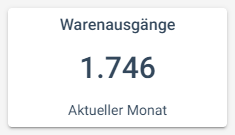
Currently, all warehouse key figures are only displayed via the individual values. The following data sources (widgets) are available for this purpose:
- Documents
- Positions
- Picking
- Transfers
- Storage units
- Tonnage
In addition, the period of the value is listed. Other filters are not displayed. Depending on the data source, the filters users, zones, product categories and articles can be set.
Multi value
Multiple values are displayed by means of a multi-value. The following data sources (widgets) are available for this purpose:
- Documents
- Positions
- Storage units
In addition, the time period and the summed value of the displayed status values are listed. At least one status value must be selected for a value to be displayed. A maximum of 5 status values can be set.

Bar chart
The bar chart shows individual values per day of the selected period. The following data sources (widgets) are available for this purpose:
- Documents
- Positions
- Storage units
- Tonnage
In addition, some filters and the summed value of the selected status values are listed.
If several document types are selected, e.g. goods in orders and customer orders, only the status values that occur in both document types can be selected. Example: For goods in orders and customer orders, the status ‘Deactivated’ can be selected, but not the status ‘Packed’, because this status value does not occur for purchase orders.
Special feature – clock times per period: The selected clock times limit the query in the selected period.

Note
The displayed message can be classified by note type. The note types General, Notice and Warning differ in the appearance of the icon.
The text length is limited to 30 characters in the title and 200 characters in the message.
