


Goods receipt
Purchase order is the transmission of an order to suppliers for ordering goods. In Coglas Web WMS, it represents the already created purchase order waiting for goods receipt by the supplier.
The data is entered manually or as an import via the data interface/import function. The order consists of an order header and order positions. In the order header, the order number, the order date, the client and the supplier are entered. In the purchase order position, the article number, the quantity and optionally the stock qualifications are recorded.
The order overview shows all available and entered/transferred orders in their respective status.
Various filters can be used to narrow down and sort the display.

The search allows you to narrow down the list of orders according to the search input.

Each order can have the following status:
| Status | Description |
|---|---|
| Created | The order has been created/transferred and no processing has taken place yet. |
| In Progress | The order was placed in mind. 1 delivery bill is transferred and processed in the goods receipt. |
| Completed | All items for the order have been processed and are in the order position status Completed or the order has been completed manually. |
| Transfer to ERP | If a connection to an ERP system via data transfer has been set up, the successful data transfer to the ERP system is documented here. |
| Deactivated | The order has been manually deactivated by a user and is now not available for further processing unless you reactivate this order. |
Each order position has the following information in addition to the above mentioned status:
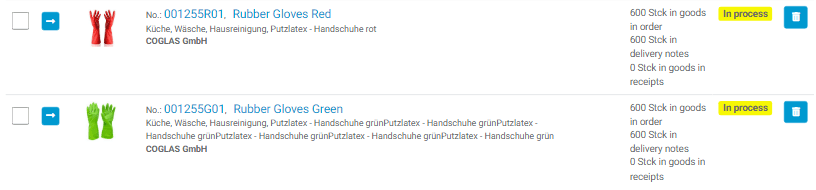
- Unit quantity in order
- The unit quantity per position deposited to the order
- Unit quantity in delivery bills
- The quantity transferred to delivery bills per position
- Unit quantity in goods receipts
- The quantity received in the goods receipt per position; if the quantity is equal to that stored in the order position, the position changes to the status Completed

In the Positions tab, the order positions are displayed. Attachments shows the files deposited to the order. Under linked list all delivery bills and goods receipts resulting from this order are displayed.

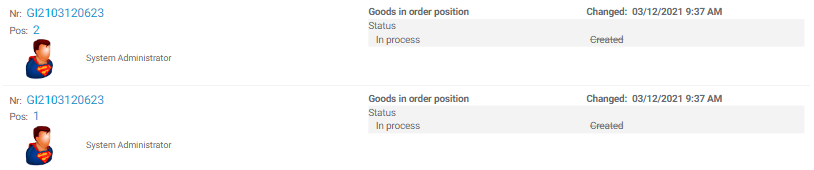
The revision history shows all changes to this order:

| Button | Description |
|---|---|
| Add order | The order is entered in a list header editor. Mandatory fields must be filled in and will be specially marked when saving if not entered (see in red). The following fields are offered for entry: Creation date, number, order date, client, Carrier, GR date planned, remarks, reference no., reference no. 2, target strategy.
With Add order the order is saved, with Cancel the process is canceled. |
|
Duplicate |
Using the duplicate function, the selected order will be used as a copy template for creating additional orders. Order positions are taken over completely. The order header editor is identical to the “Add order” function. Duplicate duplicates the order, Cancel cancels the process. |
|
Edit |
It is possible to subsequently adjust the header of the order. The order header editor is identical to the “Add order” function.
Note: After the goods receipt has been started, the function is deactivated. Save order updates the order, Cancel cancels the process. |
| Add new position | A new order position is entered. To do this, enter the article number, quantity, and optionally the inventory qualifications for the new purchase order position. The red fields are the mandatory fields of this entry: article, quantity, overdelivery warning, batch, production date, remaining time, SBK, SBK 2, delivery no. delivery position, reference no. target strategy, loading equipment, quantity per storage unit, goods receipt date. |
| Create a delivery note | With the functionality Create LS the order is transferred into a delivery bill. In addition to LS number, truck license plate, reference and reference2, the goods receipt header strategy can also be added or corrected here. All positions of the order will be taken over. The input fields for the delivery bill attachment are optional. With Create delivery bill the delivery bill is created, with Cancel the process is canceled. Several delivery bills can be created for one order. |
| Complete | This allows the order to be manually transferred to the Completed status. |
| Print overview | A printout of the order incl. Order positions can be initiated here. |
| Show delivery bill | The “most recent” delivery bill resulting from this order is displayed here. |
| Display goods receipt | The “most recent” goods receipt resulting from this order is displayed here. |
| Transfer manually | The function sets the status manually to Transferred to ERP |
| Add attachments | Opens the Attachment dialog. Besides file names and annotations, an image file or other file can be saved here for ordering. |
| Select all on current page | All order positions of the current page will be selected. |
| Calling the order position for editing, works only for positions in status not equal to Done | |
| Checkbox for selecting/deselecting an order position | |
| Deselect all pages | All selected order positions on all pages will be deselected. |
| Duplicate selected | All selected order positions will be duplicated- |
| The order position is deleted.
|
|
| Delete selected | All selected positions will be deleted.
|

Data interface
Under System Service Configuration you can define per client the triggering of a feedback via the JSON interface (message text key). The interface can also be used to query the status of an individual order – see Interfaces.
Supplier
Suppliers can be created under system business partners.
Target strategies
Under System strategy you can define the respective goods in receipt strategy.
Warnings
The following warnings may appear within the processes:
| Warnings | Description |
|---|---|
| Validation has failed. Please check the entries. | Not all mandatory fields have been entered, see also red marked fields |
| Goods have the wrong status | Only order positions in Created status can be duplicated. |
| Goods in receipt position is already completed | Deleting an order position cannot be done in the status Completed or Transferred to ERP. |
| Goods in receipt position is already in process | Deleting an order position cannot be done in the In process status. |